¶ firmware flashingTutorial
The latest firmware supports OTA, but since the download source is currently on Github, some users may fail to update. In this case, they can choose to update manually.
¶ # 1. Get the firmware file
You can obtain the firmware in any of the following ways:
- Alternative download: Download a precompiled firmware file from Baidu Netdisk. It may not always be the latest version, but it is easier to access.
🔗 Download link - Build it yourself: Get the source code from GitHub and compile the firmware yourself. Select a firmware build that includes the bootloader; GitHub access is required.
🔗 Download link (Github)
¶ # 2. Download flashing tool
Please download the flash_download_tool flashing tool:
- official channel:
🌐 Espressif Systems official download page - Alternate channel:
🔗 Baidu Netdisk Download
(Contains "Software, Firmware" folder)
¶ # 3. Configure flashing parameters
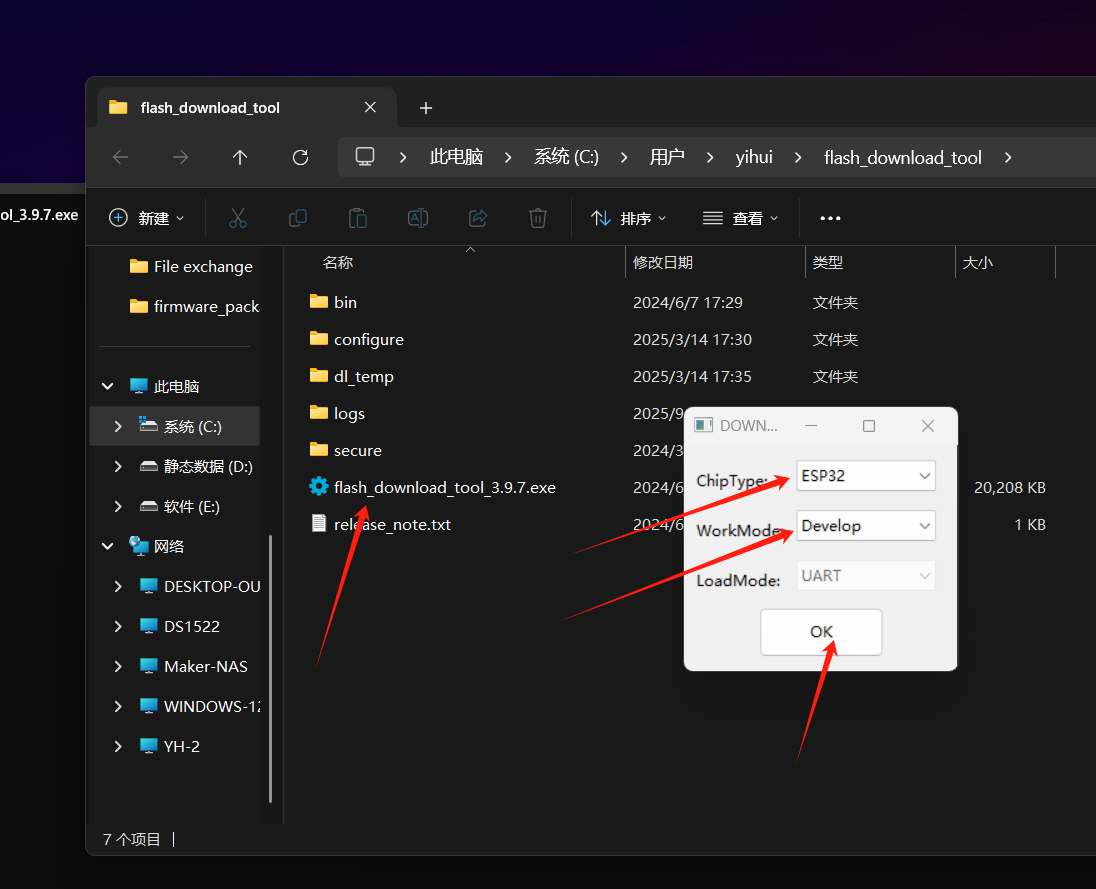
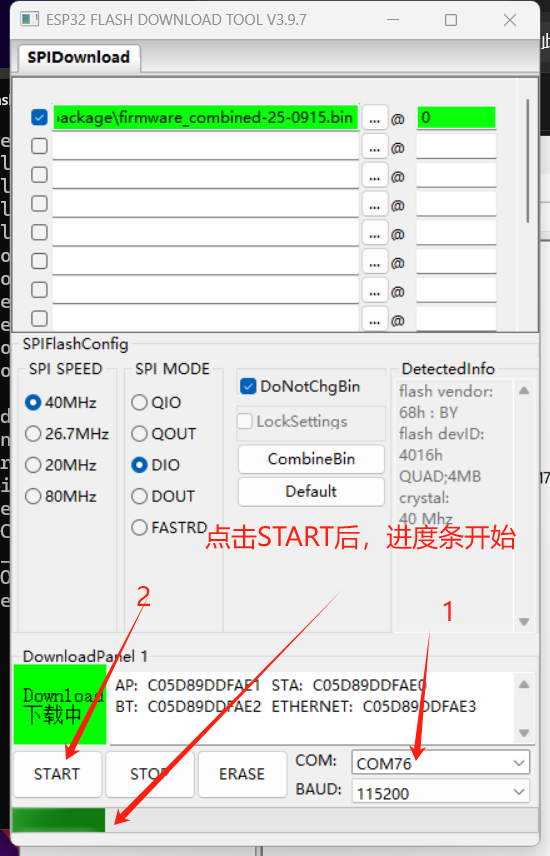
- Open the flashing tool and configure it as shown in the figure below:
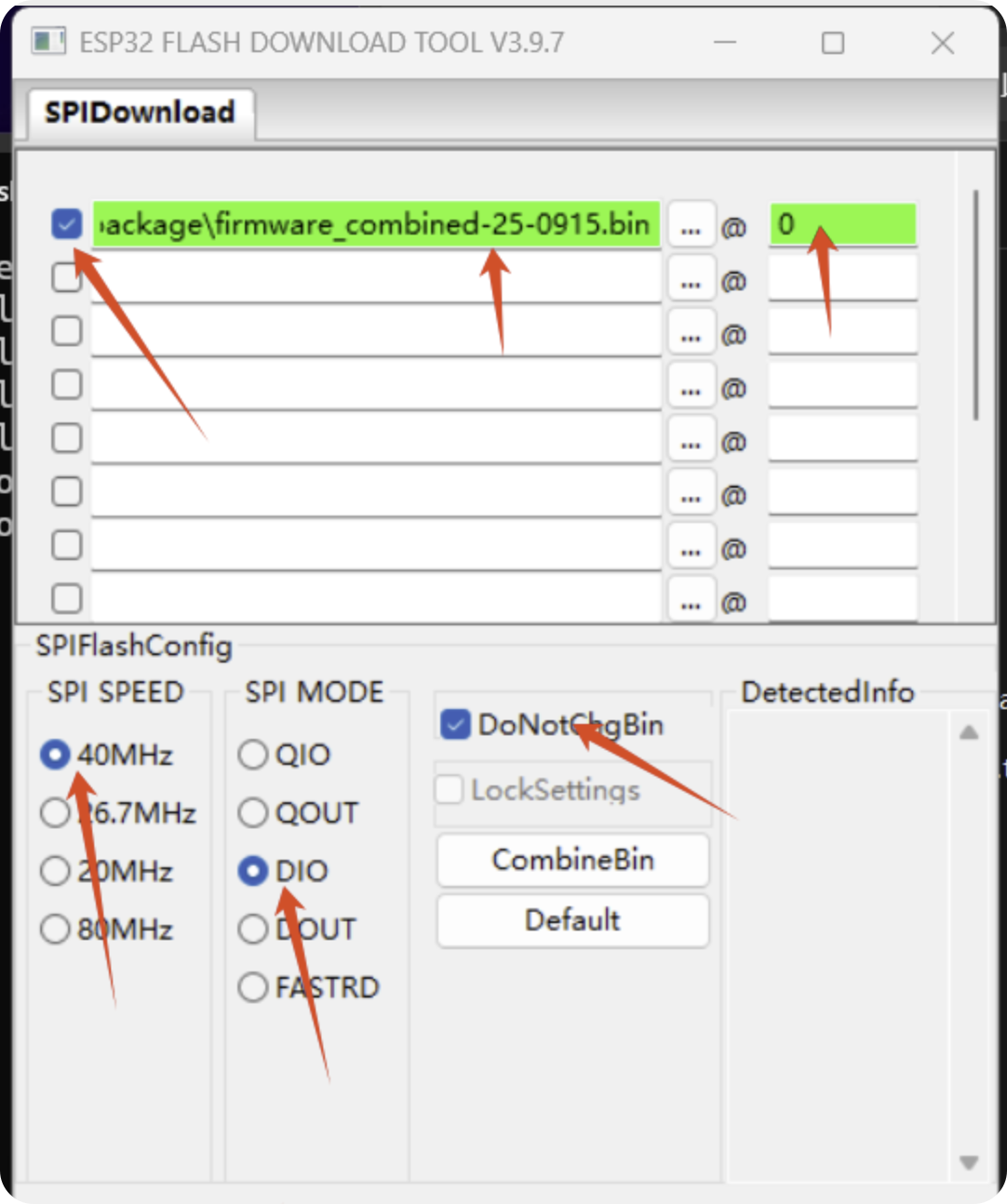
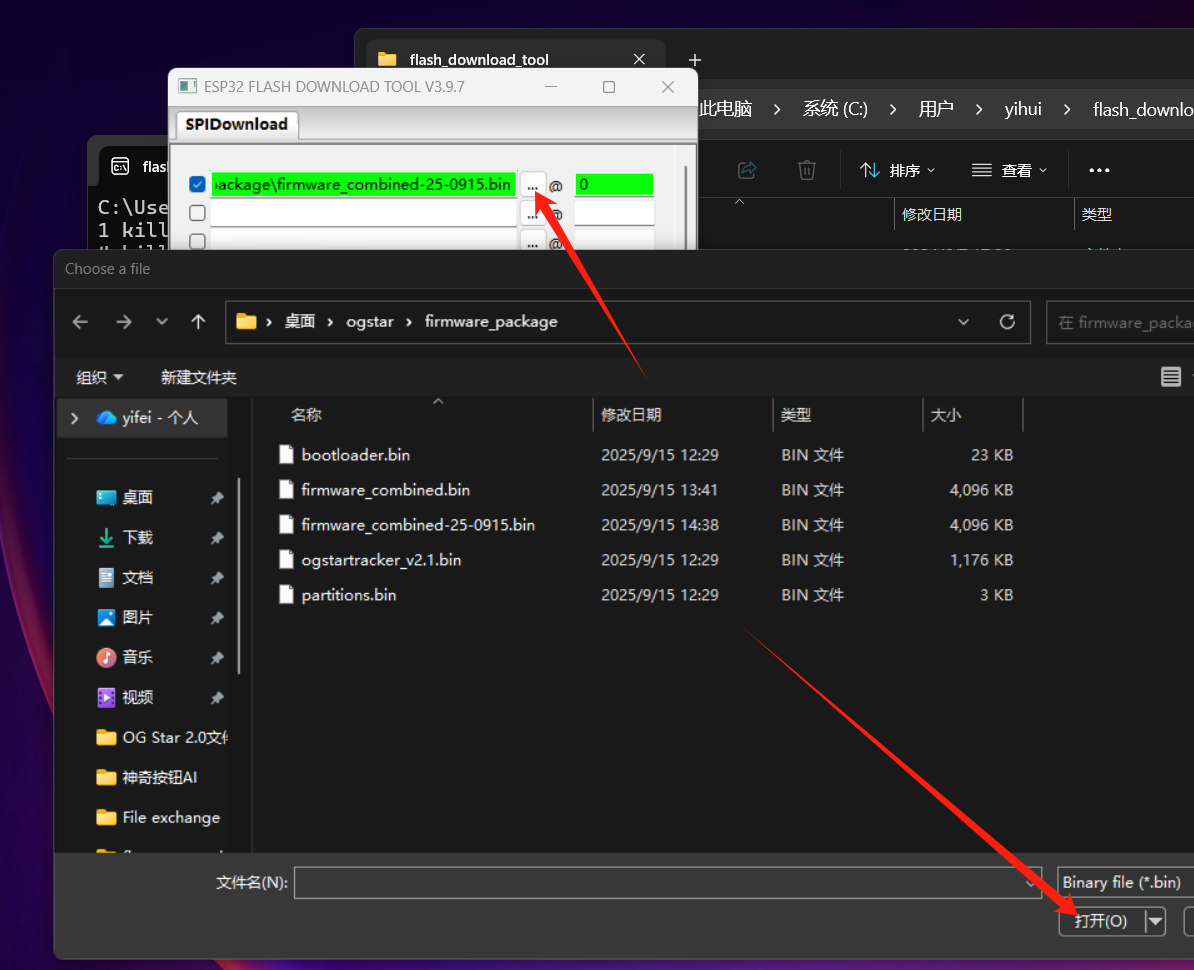
- Select the downloaded firmware file and complete parameter settings as shown:
¶ # 4. Connect the device
- Prepare a USB data cable that can transmit data
- Connect one end of the data cable to the computer and the other end to the Type-C interface on the equatorial mount motherboard.
- If the equatorial mount motherboard has multiple Type-C interfaces, please select data input port
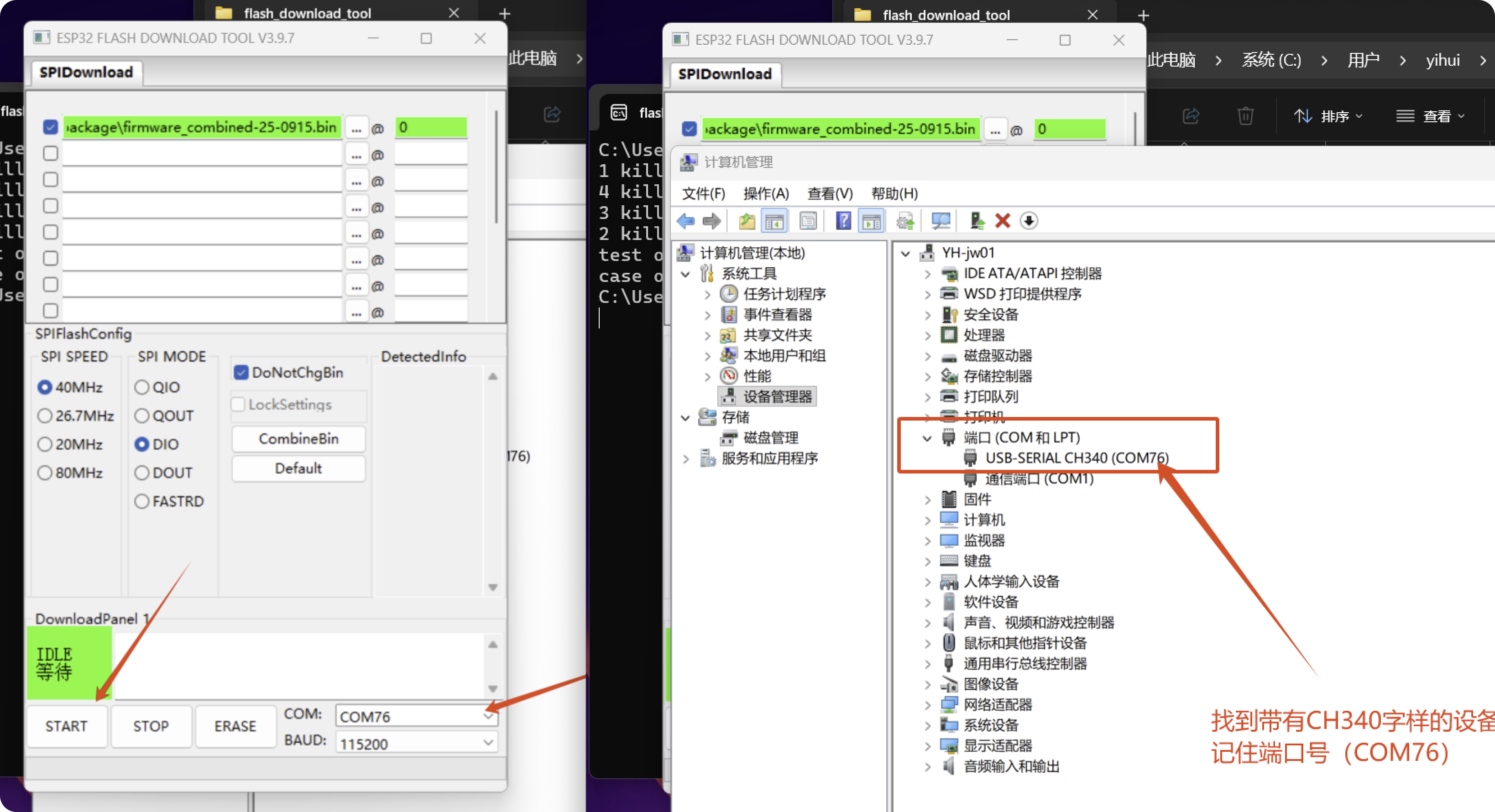
- Open the computer's device manager, confirm that the device is recognized and record the corresponding COM port number
PS: If your device does not display the device with the CH340 logo, it may be because the CH340 driver is missing. You can install it by yourself [Download CH340 driver] (https://www.wch.cn/products/CH340.html). After installation, please restart the computer to continue.
¶ # 5. Start flashing
- Click START to begin flashing. Confirm that the checkbox next to the firmware-file address is selected and that the address is shown in green.
- Wait for the progress of flashing to be completed, please do not disconnect during this period
¶ # 6. Complete verification
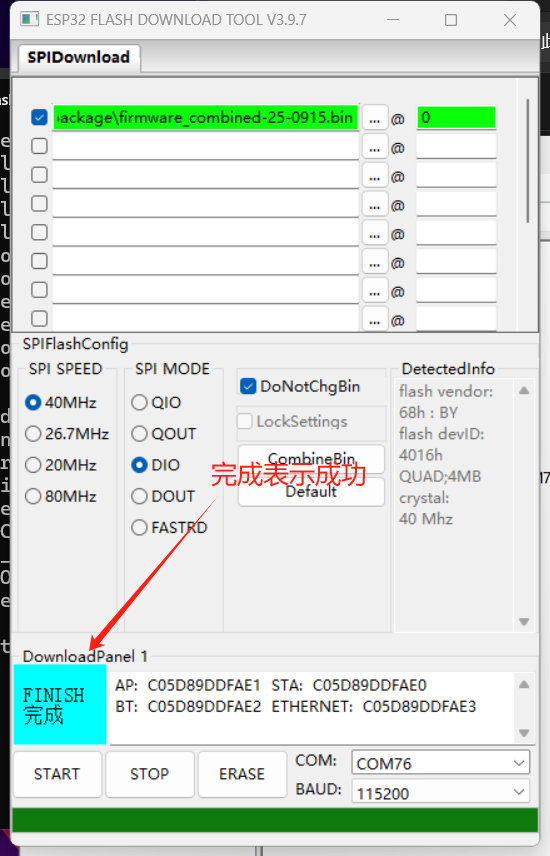
When the interface displays the "Complete" prompt, it means that the firmware has been successfully installed. It is now safe to disconnect the device.
¶ 
- Note: If you encounter an abnormality during the flashing process, please check the stability of the data cable connection and try again. *